
DSC Keypad Commands
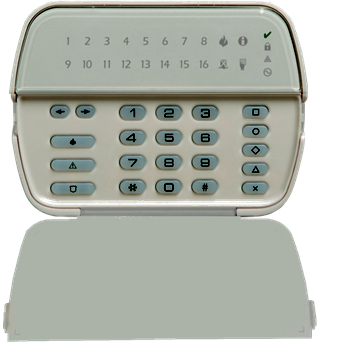
The DSC Power Series features an extensive suite of keypad commands, many of which can be utilized without the requirement of entering a master code. However, access to certain advanced functionalities, such as panel programming, may necessitate the input of the installer code or master code. These keypad commands offer a user-friendly interface to the alarm system’s capabilities, particularly on older keypad models such as the one depicted below.
LED keypads
Keypads have lights on them that gives your arm/disarm status, zone status, and more. To effectively use and program the system with a LED keypad, you need to know how to read binary values, making this the most difficult option to use the alarm system. Doing simple commands like bypassing, alarm memory is okay, but not the most pleasant experience. It is highly recommended that you get yourself a full text keypad if you are planning to use the system, and maintain the system yourself. The commands below work on all the keypads.
DSC Power series Keypads commands
If you wish to see more information om the commands available for DSC system.
[*][1] Bypass Command
Tells the system to ignore open inputs(zones) on the board. To read more about bypassing zones on a system follow the link here: https://geldenhuys.tech/bypassing-a-zone/
[*][2] Trouble Command
Displays a list of fault conditions on the systems. To read more about trouble conditions on the systems: https://geldenhuys.tech/trouble-conditions/
[*][3] Alarm Memory
Displays the zones that went into alarm during the previous arm cycle. To read more about this feel free to follow the link https://geldenhuys.tech/alarm-memory/
[*][5] Add users on the system
Add additional users to the system. Depending on brand and model, it will allow for anything from 16 to 200 users (Commercial systems will allow for more). To read more about pin codes, feel free to follow the link here: https://geldenhuys.tech/dsc-powerseries-adding-users-or-adding-codes/
[*][6] User Function commands
Set date time and auto arming schedules. Enable DLS (Remote Download of the panel) etc. To read more about setting your date and time of the system, feel free to follow the link: https://geldenhuys.tech/date-and-time/
To read more about the user menu, you can follow this link here: https://geldenhuys.tech/user-functions/
[*][7] PGM outputs
To toggle the PGM outputs on the main Board of the alarm system. To read more about switching your PGM outputs to toggle relays or door locks you can read the link here: https://geldenhuys.tech/command-output/
[*][8] Programming Menu
To enter installer programming and program the panels. To enter programming and program the panels require the installer code of the system. If you do not have the installer code you can factory default the board, at the cost of losing all your programming. You will then have to re-program the board starting from the beginning. Depending on how many zones you have this might not be quick and easy and will consume a fair bit of your time.
[*][9] Remove Entry Timers
Remove entry-exit times to panels. Entry exit zones acts as instant zones. Your main entry door will now not start the countdown process if the door is open, and will create an instant alarm condition.
[*][0] Quick Arming
Quick arming feature. When leaving the property, you can quick arm the system without entering your user code. The system will start the countdown timer with the keypad beeping and arm in a short time.
Additional Features
Emergency Keys: Many keypads have dedicated emergency keys for Fire, Auxiliary, and Panic alarms
Function Keys: Some keypads feature programmable function keys for quick access to common features
System Operation Tips
The Ready light must be ON to arm the system.
The Armed light indicates when the system is successfully armed.
Use the scroll keys on LCD keypads to navigate through options.
Press [#] to exit any menu and return to the Ready state.
Remember that some commands may require a master or installer code for access. Always consult your system’s user manual or a professional installer for specific instructions related to your DSC alarm model.
Summary
The DSC Power Series has a broad range of commands available. Commands can be used, by pressing the star command, followed by your installer code or Master code of the system. The Master code applies to all the commands except if you want to go into panel programming (“*8” command).
“*1”  Bypass Command – Tells the system to ignore open inputs(zones) on the board.
“*2” Trouble Command – Displays a list of fault conditions on the systems.
“*3” Alarm Memory – Displays the zones that went into alarm  during the previous arm cycle.
“*5” Add users on the system – Add additional users to the system. Depending on brand and model, it will allow for anything from 16 to 200 users (Commercial systems will allow for more).
“*6” User Function commands – Set date time and auto arming schedules. Enable DLS (Remote Download of the panel) etc.
“*8” To enter installer programming and program the panels.
“*9” Remove entry-exit times to panels. Entry exit zones acts as instant zones.
If you want to look at a list of available keypads for the DSC system you can head over to their homepage, where you can look a whole list of products, modules, and keypads available to the system: