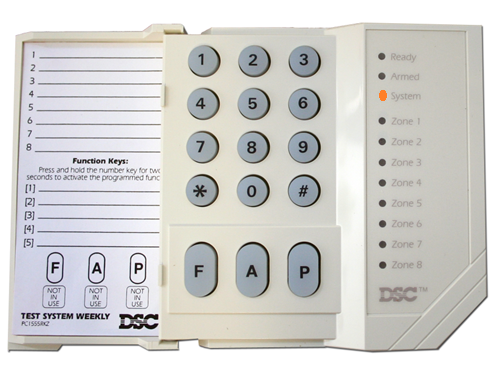
How to check the alarm memory feature?
The alarm memory feature shows you which zones went into alarm during the previous arming cycle. Most DSC systems also include an event log under the [*][6] command, which provides a more detailed history. However, the alarm memory feature is faster when you only need to see which zones triggered recently
How to check the alarm memory feature?
First, disarm the system (default master code: 1234).
Next, press [*][3] on any keypad.
The keypad immediately shows the zones that triggered during the last arming cycle.
- LED keypads light up the corresponding zone LEDs.
- LCD keypads display the zone names on the screen
This gives you a quick snapshot of what happened during the last arming cycle.
Important Notes:
- The system only stores alarm memory if a zone actually went into alarm.
- Arming and disarming the system clears the alarm memory.
- If the system has already been re‑armed, you must use the event log instead.
How to Check the Event Log
If you need a full history, use an LCD keypad:
- Scroll to [*][6]
- Enter a valid master code
- Select Event Log
- Scroll through the stored events
This gives you a detailed list of alarms, troubles, and system activity.
Using DLS5 for Full Logs
If you have access to DLS5 System Software, you can download the complete event log directly from the panel. This is the easiest way to review long‑term system activity.
For a complete view of what product is available, you can visit the DSC home page: https://www.dsc.com/