
Portainer Setup
Portainer is a powerful and user-friendly container management platform that simplifies the deployment and management of Docker containers. As organizations increasingly embrace containerization for their applications, Portainer emerges as a valuable tool for streamlining the container lifecycle. With its intuitive web-based interface, Portainer provides a centralized management hub, allowing users to effortlessly create, monitor, and control containers across multiple Docker environments. Whether you’re a beginner or an experienced user, Portainer’s comprehensive features, such as container orchestration, user access controls, and visual dashboards, empower you to efficiently manage and scale your containerized applications. By abstracting the complexity of Docker and offering a seamless user experience, Portainer brings enhanced productivity and control to container management, making it an essential component for modern development and deployment workflows.
Pi-Hosted is my go to resouce to install Docker and Portainer on the Raspberry Pi 4. Their github link is here:
GitHub – novaspirit/pi-hosted: Raspberry Pi Self Hosted Server Based on Docker / Portainer.io
They have instructions with a script that installs everything for you, especially if you want to keep things easy with a full set of instructions videos called Pi Hosted, with a youtube channel called Novaspirit Tech. This takes you trough the docker & portainer installations.
Docker
wget -qO- https://raw.githubusercontent.com/pi-hosted/pi-hosted/master/install_docker.sh | bash
Their script automates the whole process. If you wish to update portainer after installtion you can stop the container by following the instructions. If you ever need to stop the container and perform an update simply follow these instructions.
Stopping and Removing a container
sudo docker stop portainer && sudo docker rm portainer
Stops and remove portainer (Only required if you want to update portainer). Make sure it is not running, and remove the Portainer image
Pull the Docker Portainer image
docker pull portainer/portainer-ce:latest
Pulls the latest version of the Portainer Image, remeber to run the command to create the docker volume before running the docker run command
Run Docker Image
docker volume create portainer_data
docker run -d -p 9000:9000 -p 8000:8000 –name portainer –restart always –dns=8.8.8.8 -v /var/run/docker.sock:/var/run/docker.sock -v portainer_data:/data portainer/portainer-ce:latest
Below is a code block where wordpress wont filter ot the original syntax
docker volume create portainer_data
docker run -d -p 9000:9000 -p 8000:8000 --name portainer --restart always --dns=8.8.8.8 -v /var/run/docker.sock:/var/run/docker.sock -v portainer_data:/data portainer/portainer-ce:latest
Starts/Run the portainer image. Notice the DNS option is not part of the string. I prefer to manually specify the DNS by adding –dns =xxx.xxx.xxx.xxx where all the x’s are your preffered DNS IP address, for example 8.8.8.8, like in the example above.)
docker run -d -p 9000:9000 -p 8000:8000 –name portainer –restart always -v /var/run/docker.sock:/var/run/docker.sock -v portainer_data:/data portainer/portainer-ce:latest
is the a sample string without the DNS parameters
Type in your Browser Bar
http://192.168.1.230:9000
To log into Portainer go to IP address of the Pi or PC that is running docker for example http://192.168.1.230:9000 or https://192.168.1.230:9443 in a web browser (I used the ip 192.168.1.230 as an example, and the port would depend on the ports specified in the docker run command). Depending on what port or ports that were used you can log into Portainers web interface and start setting things up. One of the first things that will happen while you log in, it will prompt to set the admin password.
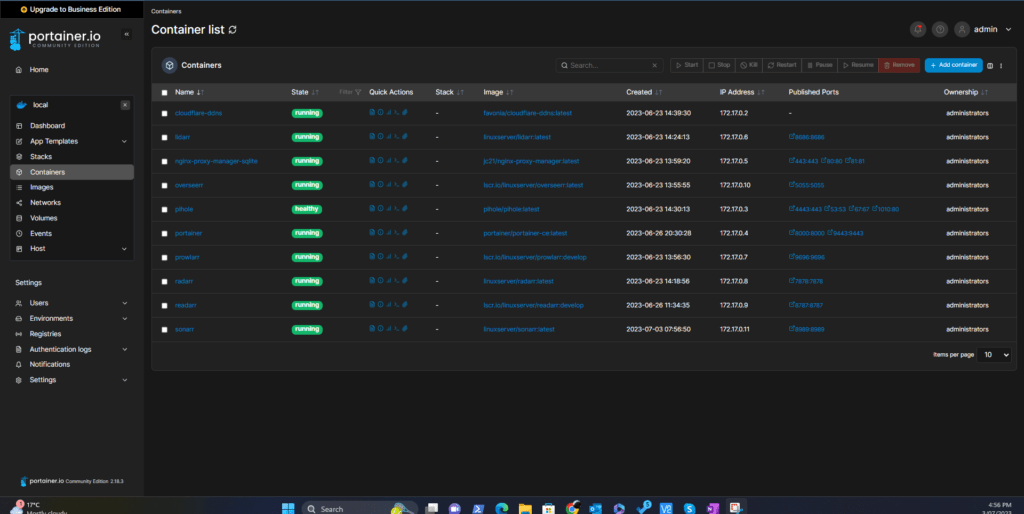
Set the password and login using your favorite browser. You should see an interface similar to the one below minus all the containers. To install your first container….
To update the App template list, click on Settings, and under Application Settings look for App Templates. Replace the default string in App templates
Default Portainer Docker Store
with
Updated Portainer Docker Store
I am assuming you are using a PI with 64 bit OS. On the raspberry Pi 2 which uses a 32 bit architecture not all the containers are available since armhf (arm32) architecture has been discontinued. Many of the images are no longer available and you must compile for yourself.

After all the changes you should see a list of apps that can be installed under App templates. ON first launch it might be a little slow, but you will get an updated list of app templates that works with ARM devices like the Raspberry Pi. If the installation was done on a PC you can use the same installation method.