
Configure your Raspberry PI for Remote Access
Configure the PI for remote access: Once you have installed Raspbian (Raspberry PI OS), you can configure your Raspberry Pi for remote access, which allows you to control your Pi from another device, such as a laptop or smartphone or tablet, using VNC to connect to the PI. This is done if you do not have a keyboard or mouse connected to the PI. To accomplish this, we need to enable SSH (Secure Shell) on your Pi and VNC so we can connect to it remotely.
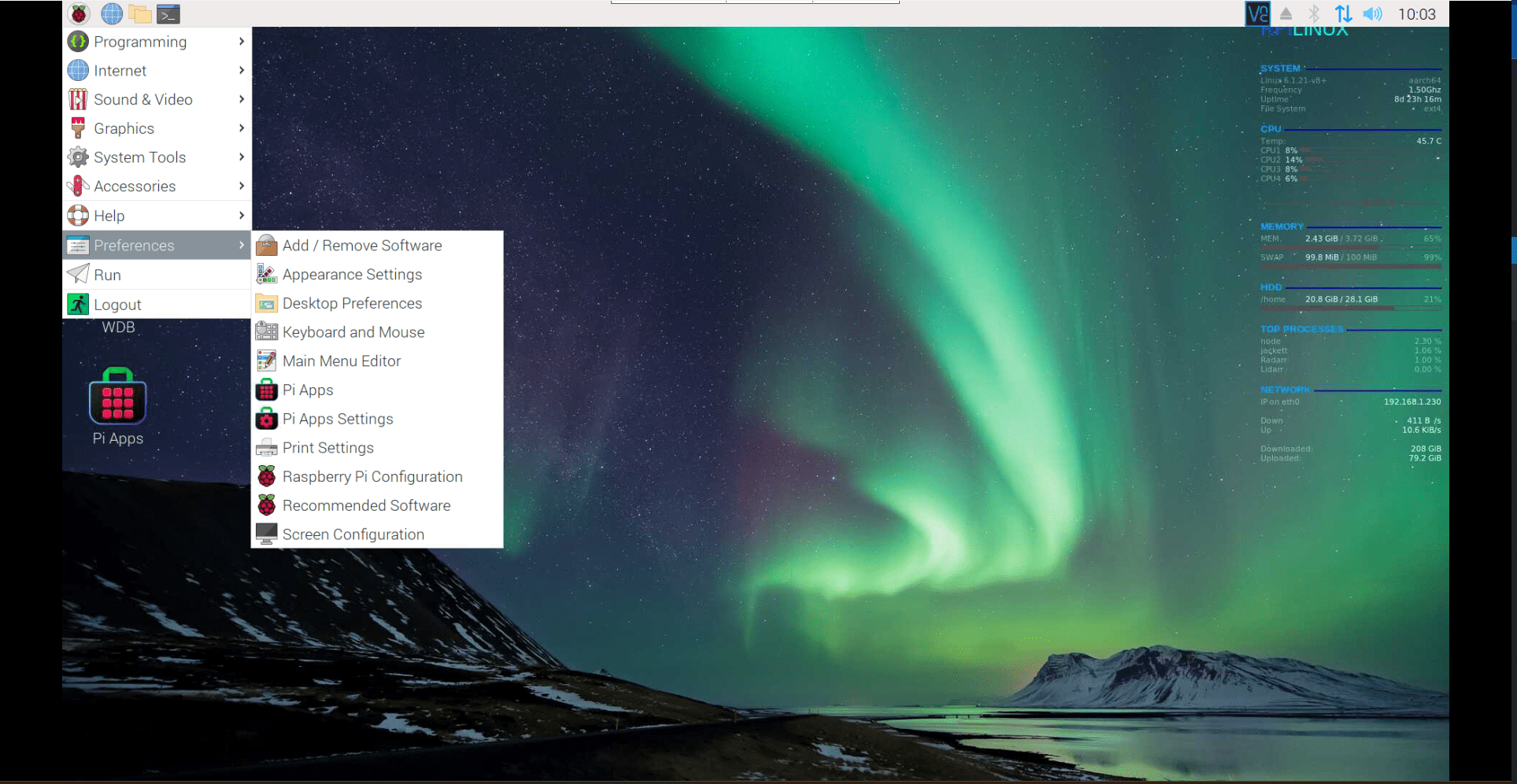
- Open Raspberry Pi configuration.
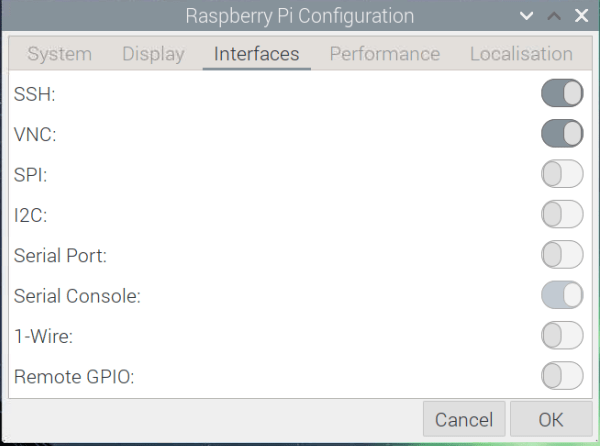
- Click on the interfaces option – See screenshot below.
- Toggle SSH to allow you to use utilities’ like File-Zilla and ssh terminal commands for remote access
- Toggle VNC to allow VNC compatible remote desktop clients for remote access. See the screenshot below
1. SSH (Secure Shell)
SSH provides command-line access to your Raspberry Pi:
1. Enable SSH on your Raspberry Pi:
- Open Raspberry Pi Configuration
- Go to the Interfaces tab
- Select “Enabled” next to SSH
2. Connect from another computer:
- Open a terminal
- Type: ssh <username>@<ipadress>
- Enter your password when prompted
2. VNC (Virtual Network Computing)
VNC allows you to access the Raspberry Pi’s graphical desktop:
1. Enable VNC on your Raspberry Pi:
- Open Raspberry Pi Configuration
- Go to the Interfaces tab
- Select “Enabled” next to VNC.
2. Install a VNC viewer on your computer
Connect using the Raspberry Pi’s IP address
Ensure you’re running the 64-bit version of Raspberry Pi OS Bookworm
3. Use Raspberry Pi Connect
Access your Raspberry Pi through a web browser using the provided link: Raspberry Pi Connect Beta – Access your Raspberry Pi from anywhere – Raspberry Pi
3. Raspberry Pi Connect
Raspberry Pi Connect provides remote access through a web browser:
Each method has its advantages, with SSH being lightweight for command-line access, VNC offering full desktop control, and Raspberry Pi Connect providing easy browser-based access.
Click on Raspberry Pi configuration and make sure that SSL and VNC has been selected. Depending on the age of Raspberry PI OS installed on your PI, VNC might not be the default option. These options can be enabled during during the installation process or can be enabled after the installation has been completed by using a monitor and keyboard, by going to Raspberry pi configuration and enabling the option as per above.
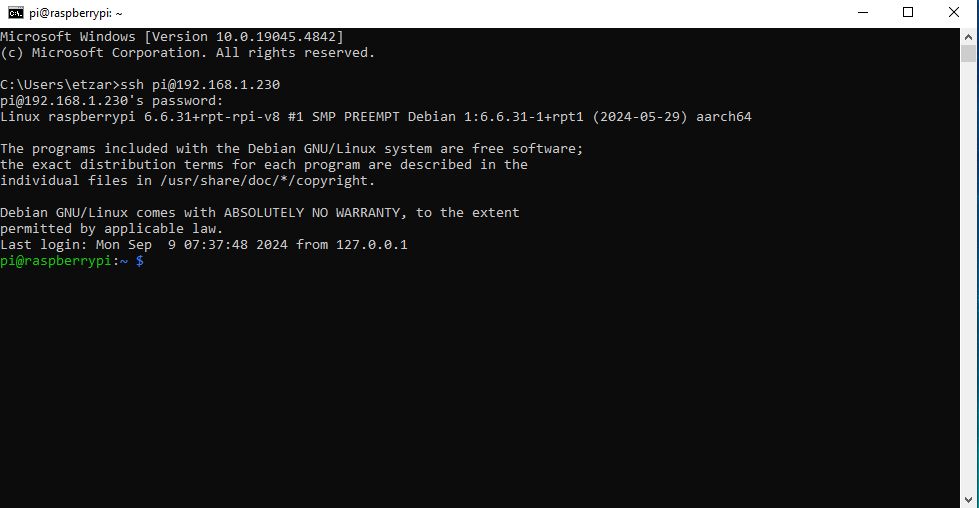
To connect from a one pc to another (in this case the Pi) we would need to know the the IP address of the Pi, so we can connect to it. If we use SSH to connect we need to type the command in the terminal
SSH into a remote PC
If we type the command in a command prompt, by changing username of the PC in question in Windows we will get a terminal connected to the PI, like below. This allows us to execute commands remotely while working on another PC like my Windows PC, while working on the Pi.
Or If you prefer a GUI, you can use a VNC client to connect to your pi. To use the VNC client you will have a desktop GUI installed on your PI, and this will allow you to connect and work on the GUI installed on the PI.