
Mounting shared drives
To Mount a shared Windows Drive (smb share): If you have a Windows computer on your network that acts as a NAS (network attached drive) that stores your media files and acts as a media server, you can mount the shared drives on your Raspberry Pi and access it like a local drive. All your hosted services or Apps on the PI then have a large drive that they can access, and some of the Apps can also use the shared storage, provided that the mounting of the drives was done, before you deployed the containers, and mapped the folders correctly.
Mounting a share on a Raspberry Pi
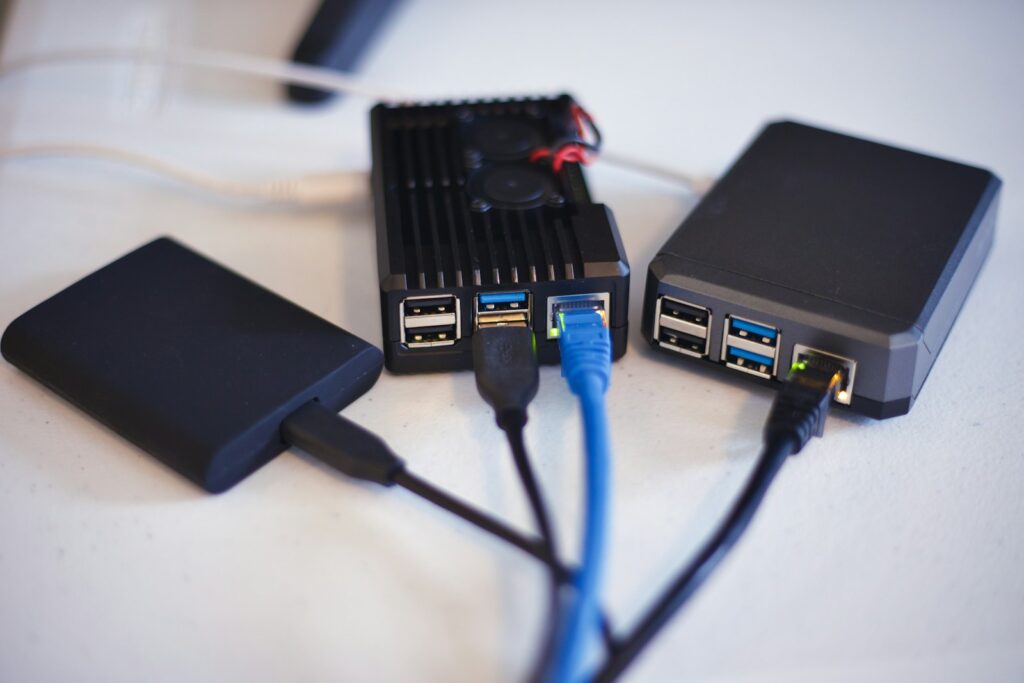
Now let’s switch gears to our Raspberry Pi. We will be mounting the Windows share to a directory on our Raspberry Pi.
We will need to install cifs-utils. This will help us mount SMB directories- which is what we get from Windows. We can install easily on Raspbian by running the following command:
sudo apt-get install cifs-utils;
- Now we will create a mount point in our home directory. This is on the Pi.
- Take note of the following, we will need it on the Pi:
- My Windows user’s password is “yourWindowsPassword”. This will be your password for the Windows machine where the share has been configured.
- My Windows computer’s IP is “192.168.1.3” Ip address of your NAS Machine/Windows share.
- sudo mount.cifs //192.168.1.7/ShareFile /home/pi/ShareFile/ -o user=yourWindowsUser,password=yourWindowsPassword
- This command is the basic command that wil be run on the Raspberry pi.
- You should now be able to navigate your Windows shared files by going into the mount point which is named “ShareFile” in Windows File manager.
To begin, create a directory under /mnt or /media where the drives will be mounted. Call it for example shareddrive. It can reside in your home directory as well. This directory will be mapped or mounted to your network share that provides on your Windows computer.
Create the Folder
sudo mkdir shareddrive
Also remeber to give Pi user main user full access to the directory if you have changed it, and not using the default pi user, or changed user names, youu have to run the command below.
Set User and Folder Permissions
sudo chown pi:pi /media/pi/shareddrive
sudo chmod 0777 /media/pi/shareddrive
Then run the following command from terminal
Mount the Folder
sudo mount.cifs //192.168.1.3/shareddrive /media/pi/shareddrive/ -o dir_mode=0777,file_mode=0777,user=myWindowsusername,password=mypassword
To break the command down so we understand more or less what we are doing lets look at the components.
- sudo mount.cifs – Is the linux terminal command
- /192.168.1.3/shareddrive – Is the network path to my windows NAS. The IP address is the address of the actual machine.
- /media/pi/shareddrive/ – Is the directory on the pi where the NAS drives will be mounted.
- -o dir_mode=0777,file_mode=0777 – This is done to give full access read and write permissions. You can adjust these to your requirements.
- user=myWindowsusername – The username of my NAS (I am running Windows -Windows username)
- password=mypassword – The Password of my NAS.
If your command was successful you can mount multiple drives, and they should be visible from your desktop. If you click on them you should be able to see the content of the drives or Folders that you have shared across the network.
Note: If the PI reboots you need to remount the folders, unless you make it so that the folder mount automatically at bootup. In order for your Raspberry Pi to mount the network shares on boot up, we need to modify the /etc/fstab file.